
Get started with MCP
Connect your AI assistant to DataFast to ask about traffic, revenue, and custom goals, or manage website operations you authorize. You need a DataFast account with API access.
Choose how to connect
Choose one method. Both use Streamable HTTP to communicate with DataFast.
- Sign in with OAuth — recommended for clients that offer OAuth sign-in, including Codex and Claude Code. Select websites and permissions on DataFast; the client handles its connection token automatically. You do not create or copy an API key.
- Use an API token — for clients that ask for a Bearer token. Create a scoped account token in DataFast and add it to your client's configuration.
Connect with OAuth
1. Add DataFast to your client
Add a remote MCP server with the URL below and choose OAuth or Sign in.
https://datafa.st/api/mcp
For Codex, add the server and complete the browser sign-in:
codex mcp add datafast --url https://datafa.st/api/mcp
codex mcp login datafast. Both client metadata documents and dynamic registration are supported, including native loopback callbacks. If DataFast is already configured with a Bearer token, remove that credential from the client's DataFast configuration before switching to OAuth./mcp inside Claude Code and authenticate DataFast:claude mcp add --transport http datafast https://datafa.st/api/mcp
2. Sign in and approve access
- Sign in on datafa.st with your existing DataFast account.
- Select the websites this client may access.
- Review the requested permissions. Read permissions are selected by default; enable writes only if you want the client to make those changes.
- Select Allow access to return to your client.
DataFast issues the client an access token for that connection. The client stores it and refreshes it automatically while the connection remains valid. Your DataFast password, dashboard session, and existing API keys are not shared with the client.
3. Try it
Start a conversation with DataFast enabled and ask:
List my available websites, then show visitors and revenue for my website over the last seven days.
Connect with an API token
dft_.1. Create an account token
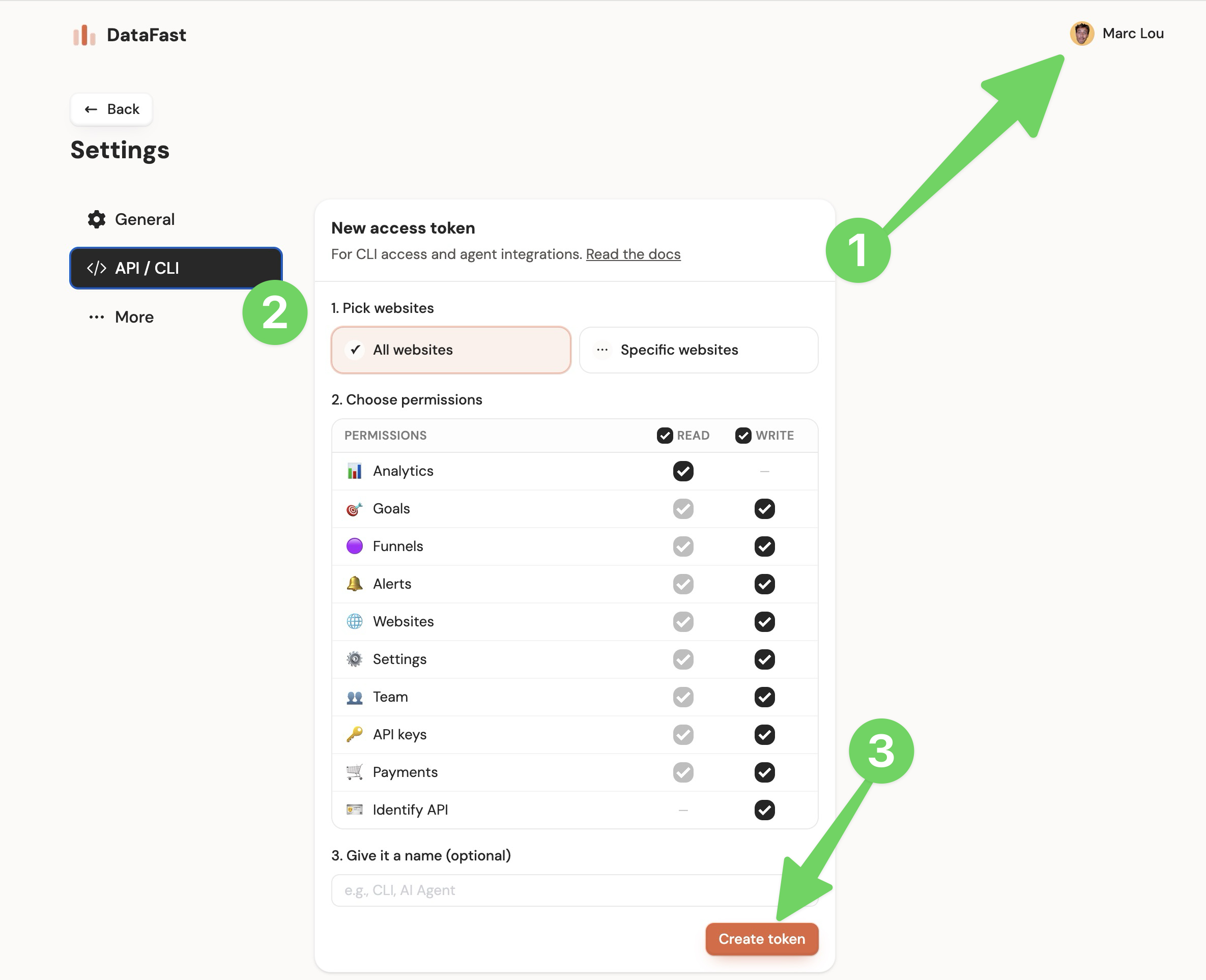
- Open Account settings → API / MCP.
- Under New access token, choose Specific websites to restrict access, or All websites if that is what your workflow needs.
- Select only the permissions you need. For an analytics connection, start with Websites → Read and Analytics → Read, with all other permissions disabled.
- Give the token a recognizable name, select Create token, and copy the
dft_value. It is shown only once.
2. Add the token to your client
https://datafa.st/api/mcp and send the token as an Authorization: Bearer … header. Keep it in the client's credential settings or an environment variable, outside source control and chat messages.DATAFAST_TOKEN environment variable, then run:codex mcp add datafast \ --url https://datafa.st/api/mcp \ --bearer-token-env-var DATAFAST_TOKEN
dft_xxx with your token:claude mcp add --transport http datafast https://datafa.st/api/mcp \
--header "Authorization: Bearer dft_xxx"
mcp.json. Make DATAFAST_TOKEN available in Cursor's environment; Cursor expands the environment variable when connecting.{
"mcpServers": {
"datafast": {
"url": "https://datafa.st/api/mcp",
"headers": {
"Authorization": "Bearer ${env:DATAFAST_TOKEN}"
}
}
}
}
3. Try it and manage access
Ask your client to list your available websites, then request visitors and revenue for one website over the last seven days.
df_ website API key? The general MCP endpoint accepts those too, with access tied to that website. Check API authentication for the operations it supports. You can also restrict an account token to one website using Specific websites above.How access is limited
Both methods give the client a secret credential. OAuth automates issuing and renewing that credential after your consent; an API token is a credential you create and configure yourself.
DataFast checks the credential, permitted action, website access, current membership, and applicable account or plan restrictions on the server. A website ID in a tool request is a target to check, not proof of access. For example, an OAuth connection approved to read Website A cannot read Website B or edit Website A.
OAuth connections access only approved websites. A website created through an approved OAuth tool is added to that connection; websites added elsewhere are not shared automatically. OAuth tokens expire after one hour, refresh automatically for up to 30 days from issuance, and require fresh consent after at most 90 days. Account tokens created in the dashboard stay valid until you roll or delete them, subject to your account access and permissions. API keys and account tokens issued through OAuth also depend on the original connection remaining valid.
Safety
- Start with limited access. Give the client only the websites and permissions it needs. Account actions, credential management, and full visitor details require separate OAuth permissions that are off by default.
- Review changes. OAuth write tools require confirmation and a retry key. API-token tools require confirmation for sensitive operations such as deleting data or issuing credentials. These checks supplement the client's confirmation UI; they do not replace choosing a trustworthy client.
- Keep credentials private. Both methods use Bearer tokens: someone who obtains a valid token can use its permitted access until it expires or is revoked. Never put credentials in URLs, source control, or chat messages.
- Disconnect when needed. Revoking an OAuth connection blocks subsequent requests and refreshes. A request already running may finish, and data already shared with the other app is not deleted by revocation.
- Dashboard-only operations stay in the dashboard. MCP cannot delete websites or connect/disconnect payment providers.