
ChatGPT app
 ChatGPT app
Ask ChatGPT about your DataFast analytics and see interactive charts inside the conversation. Explore your traffic, find your best revenue sources, and follow up on a result without exporting data or writing queries.
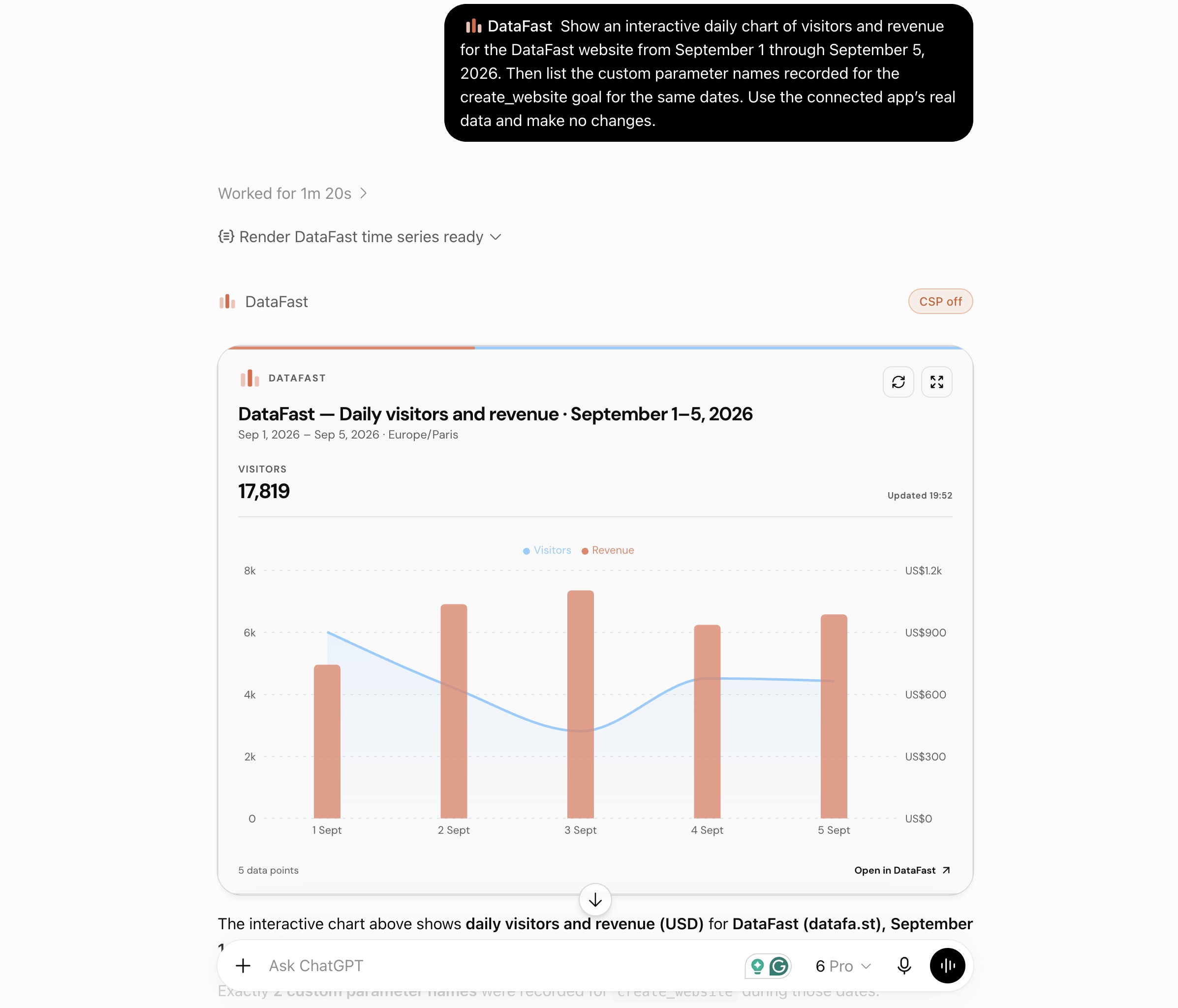
An example from the developer preview: daily visitors and revenue for a selected website and date range.
What you can do
- Chart traffic and revenue. Ask “Show visitors and revenue for my website over the last seven days.” Explore the chart, refresh it, or open the website in DataFast.
- Compare marketing channels. Ask “Which referrers brought in the most revenue this month? Show a bar chart.” You can also compare pages, campaigns, countries, and devices.
- Explore conversion funnels. Ask “Show my signup funnel and where visitors drop off.” The app uses the funnels you have set up in DataFast.
- Inspect custom goals. Ask “List the custom parameters recorded for my signup goal, then break down completions by plan.” Use a goal and parameter your website actually tracks.
- See active visitors. Ask “Show where visitors are active right now.” The map groups approximate locations from the last ten minutes.
Choose the website and date range in your request. Revenue, goals, and funnels reflect the data you have connected or recorded in DataFast; your existing plan limits still apply.
Connect DataFast
You need a DataFast account with API access and a ChatGPT account or workspace that allows custom connections in developer mode.
- In ChatGPT, open Settings → Security and login and enable Developer mode. Availability depends on your account and workspace policy.
- Open ChatGPT Plugins, select the + button, and name the connection DataFast. Add a short description, such as Website analytics.
- Enter the server URL below and choose OAuth if asked for an authentication method.
https://datafa.st/api/chatgpt/mcp
- Sign in on datafa.st, choose the websites and permissions to share, and select Allow access. Start with read permissions for analytics. You do not need to create or paste an API key.
- Start a new ChatGPT conversation, enable DataFast from the tools menu, and try one of the questions above.
You choose what to share
ChatGPT can access only the websites and permissions you approve. DataFast checks your current website membership, team role, and plan on each request. Websites added elsewhere are not automatically shared. If you approve website creation, websites created by this connection become available to it.
Analytics works with read permissions. You can optionally grant write permissions for supported actions, such as adding chart notes or managing goals. Ask ChatGPT to explain and confirm changes before making them. Separate permissions also allow account actions and credential management. These are off by default. The app cannot delete websites or connect payment providers.
The results you request are shared with ChatGPT. Custom goal parameters and notes can contain information you recorded, so choose permissions accordingly. Your DataFast password, dashboard session, and existing API keys are not shared, and chart widgets do not receive connection tokens.