
Add DataFast to your WooCommerce store
Connect your WooCommerce store and DataFast will automatically:
- Track visitor analytics - Pageviews, visitors, referrers, devices, countries, etc.
- Track initiate checkout and add to cart events - To help you build conversion funnels.
- Track revenue from orders and attribute it to your traffic sources - See which channels drive sales.
Step 1: Install the official plugin
- In your WordPress admin, go to Plugins > Add, search for "DataFast" and install the plugin by contributor named "justshipit".
If you prefer, you can download and install the official DataFast plugin manually.
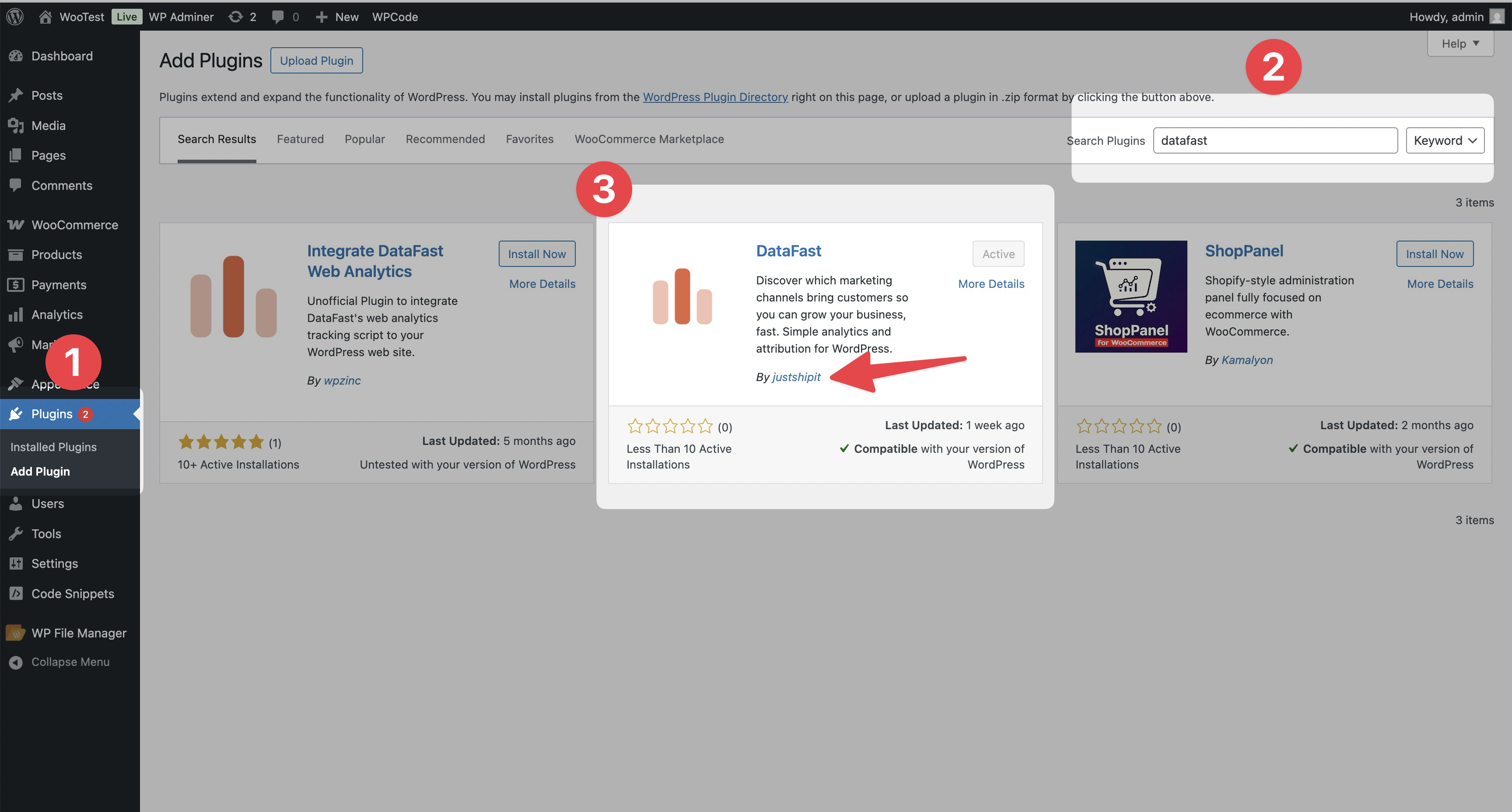
Step 2: Connect WooCommerce in DataFast
- In your DataFast dashboard, select your website.
- Go to Site Settings and open the General tab.
- Click the WordPress tab.
- Enter your WooCommerce store URL (e.g.
yourstore.com) in the field. - Click Connect WooCommerce.
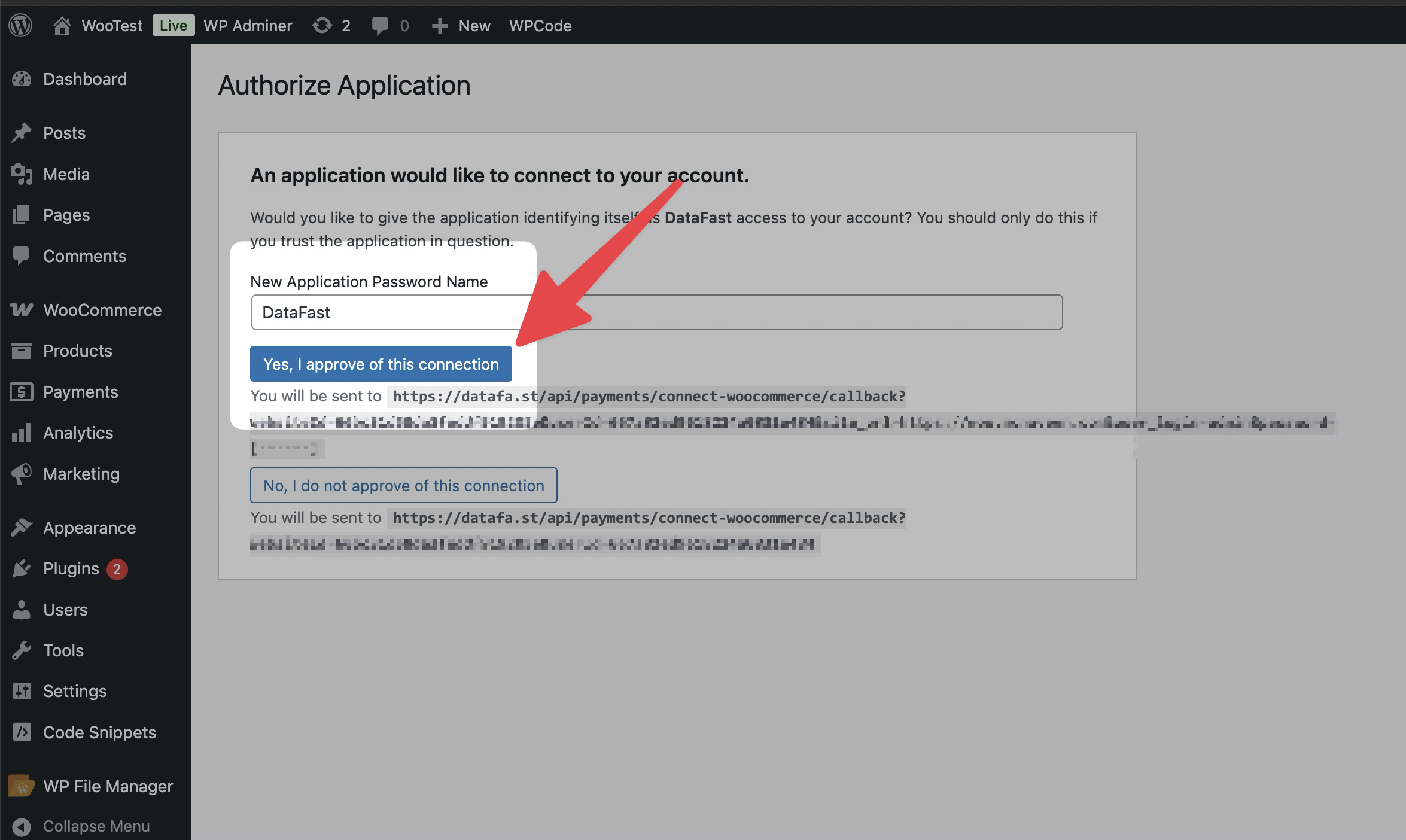
Note: You'll be redirected to WordPress to authorize DataFast. Make sure you're logged into your WordPress admin account.
- Approve the connection when prompted in WordPress.
Done! Your WooCommerce store is now connected to DataFast.
Verify installation
- Visit your store and browse or place a test order.
- Check your DataFast dashboard for pageviews and revenue within a few minutes.