
Attribute revenue with Dodo Payments
Make sure you've installed the DataFast tracking script first.
1. Pass the DataFast visitor ID to Dodo Payments Checkout
DataFast uses a simple cookie named
datafast_visitor_id to track visitors. Send the value of this cookie to the checkout metadata when creating a checkout session in Dodo Payments.import { cookies } from 'next/headers';
import { dodopayments } from '@/lib/dodopayments';
const cookieStore = await cookies();
const checkoutSession = await dodopayments.checkoutSessions.create({
product_cart: [
{
product_id: productId,
quantity: 1,
},
],
metadata: {
datafast_visitor_id: cookieStore.get('datafast_visitor_id')?.value, // Passing DataFast's visitor ID to Dodo Payments
},
// ... other checkout session creation parameters
});
2. Get a DataFast API key
Create a DataFast API key from your Website Settings. Go to Website Settings > API and click Create API Key.
Keep your API key secure and never expose it in client-side code.
3. Create webhook in Dodo Payments
- In your Dodo Payments dashboard, navigate to Developer → Webhooks → Add endpoint
- Select DataFast from the dropdown
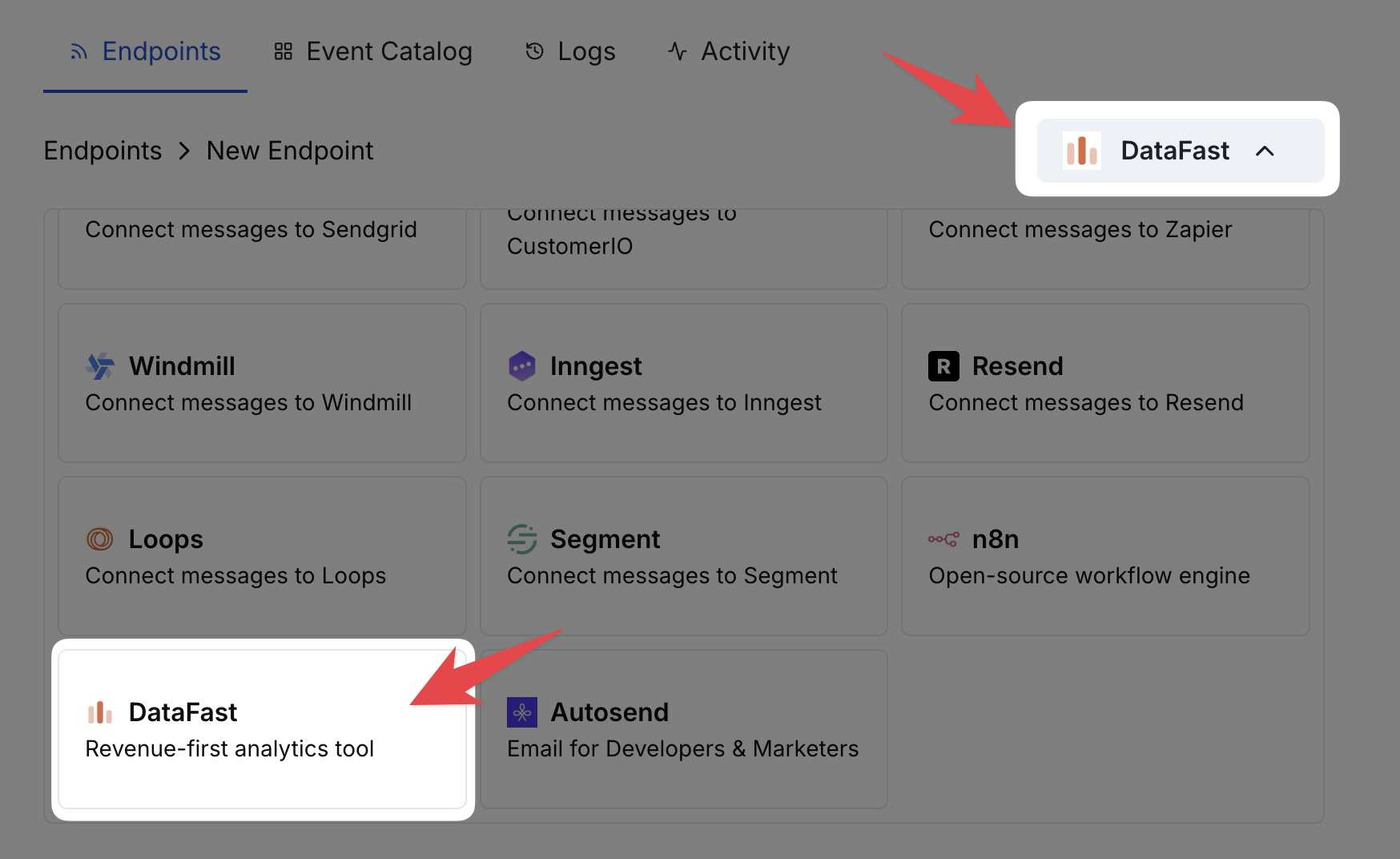
- Paste your DataFast API Key
- Click Create
Done!
🎉 Revenue data will now appear in your DataFast dashboard with full attribution to marketing channels.
After receiving a successful payment, you should see revenue data in your dashboard (referrer, country, browser, etc.).